
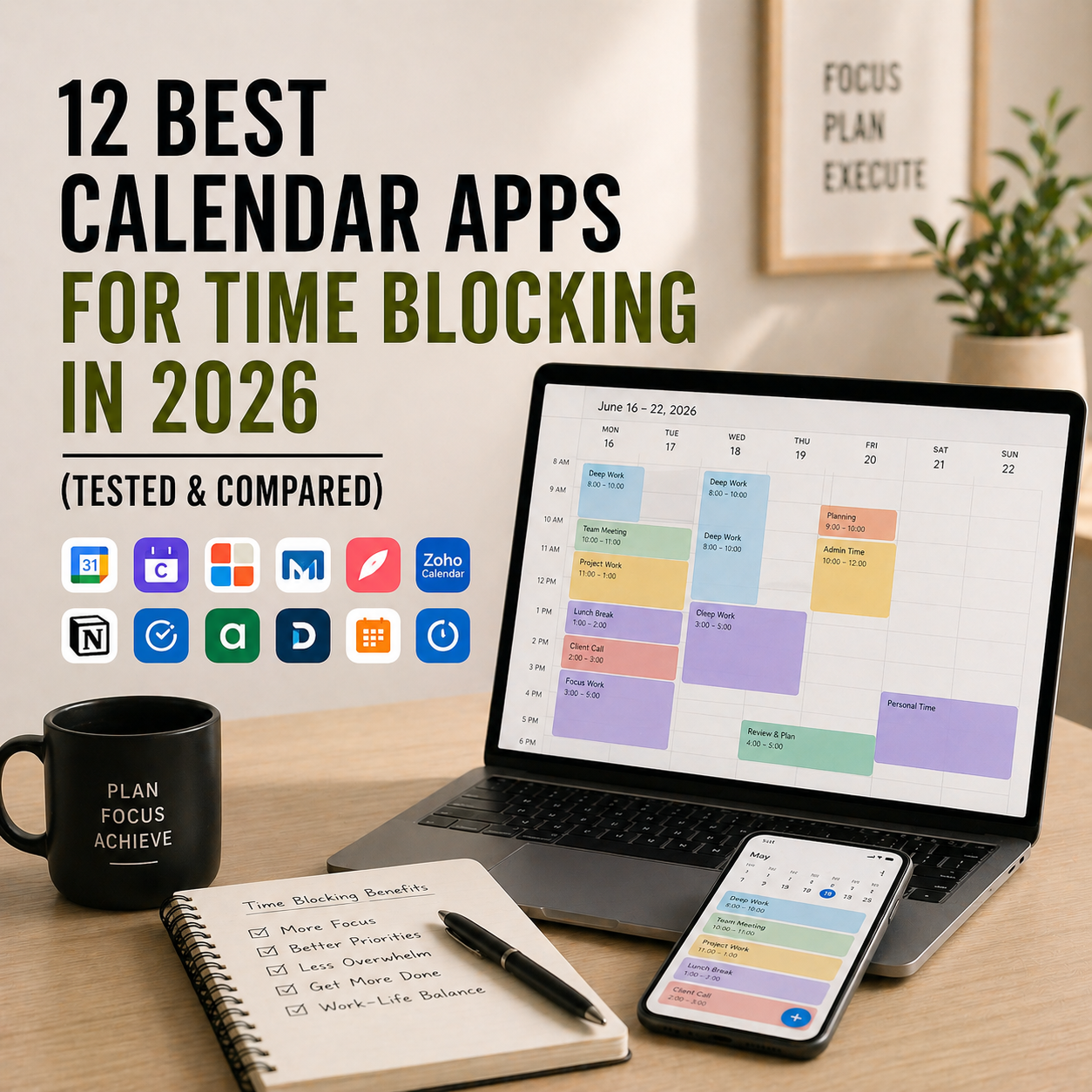
Time blocking only works if your calendar actually supports it. A cluttered interface, slow drag-and-drop, or the inability to create recurring focus blocks will kill the habit within a week. The good news: the best calendar apps in 2026 are specifically designed for time blocking — with AI auto-scheduling, smart focus block protection, and seamless integration with your tasks. Pick the right one and time blocking becomes effortless. Pick the wrong one and you’ll be back to scattered days by Thursday.
This guide compares the 12 best calendar apps for time blocking in 2026, with honest pricing, what each free tier includes, and which type of time blocker you are. Whether you’re a beginner trying to block your first day, a freelancer juggling client projects, or a power user wanting AI to do the scheduling for you, there’s a clear pick for you below.
If you’re new to time blocking itself, start with our guide on time blocking for entrepreneurs first, then come back here to pick the calendar app that runs your blocks.
What You’ll Learn
- The 12 best calendar apps for time blocking available right now
- Pricing for each, including free plans and paid tiers
- Manual vs AI-powered scheduling — which suits your workflow
- Best app by platform (iOS, Android, Mac, Windows, Web)
- A side-by-side comparison table
- How to pick the right calendar app in under 5 minutes
- Answers to the most common time blocking calendar questions
What Makes a Good Time Blocking Calendar App?
Time blocking is simple: you divide your day into blocks, assign each block a specific task, and work only on that task during the block. A good time blocking calendar makes this effortless. A bad one makes you want to quit.
Four features separate great time blocking calendars from ordinary ones. First, fast drag-and-drop editing — you need to reshape your day in seconds, not minutes. Second, visual density — the day view should show enough detail to plan properly without feeling cramped. Third, protection of focus blocks — when meetings get booked, your focus time shouldn’t vanish automatically. And fourth, integration with tasks — turning a to-do into a calendar block should take one click, not five.
The 3 Types of Time Blocking Calendars
Before picking an app, know which style fits your brain.
- Manual calendars — you drag tasks into time slots yourself (Google Calendar, Apple Calendar, Outlook, Fantastical). Best for users who want full control and don’t mind the daily planning ritual.
- AI scheduling calendars — auto-place tasks based on priorities, deadlines, and meetings (Motion, Reclaim.ai). Best for users with changing schedules who hate manual planning.
- Hybrid planning apps — guide you through a daily planning ritual that ends with blocks in your calendar (Sunsama, Akiflow). Best for users who want structure without full AI automation.
How We Picked These 12 Calendar Apps
We evaluated 25+ calendar apps and narrowed the list based on five criteria. First, time blocking workflow — does the app support block-based scheduling, or is it just a meeting calendar? Second, speed and UX — can you plan an 8-hour day in under 5 minutes? Third, task integration — does it connect to your existing to-do app? Fourth, free plan quality — is the free tier genuinely usable? And fifth, cross-platform reliability — does it sync cleanly across your devices?
Quick Comparison Table — All 12 Time Blocking Calendar Apps
| App | Type | Best For | Free Plan | Paid Plan Starts |
|---|---|---|---|---|
| Google Calendar | Manual | Default for most users | Fully free | Included with Workspace |
| Apple Calendar | Manual | Apple ecosystem users | Fully free | N/A |
| Outlook Calendar | Manual | Microsoft 365 users | Included with Outlook | Microsoft 365 sub |
| Fantastical | Manual (enhanced) | Apple power users | Limited | ~$4.75/mo or $56.99/yr |
| Motion | AI scheduling | Auto-scheduling tasks | 7-day trial | ~$19/mo |
| Reclaim.ai | AI + habit protection | Calendar defence | Yes (limited) | ~$10/user/mo |
| Sunsama | Guided daily planner | Mindful daily planning | 14-day trial | ~$20/mo |
| Akiflow | Command bar + blocks | Keyboard-first users | 7-day trial | ~$19/mo |
| Cron / Notion Calendar | Manual (modern) | Fast, keyboard-driven users | Fully free | N/A |
| TickTick Calendar | Tasks + calendar | Existing TickTick users | Yes | ~$2.79/mo |
| Morgen | Unified calendars | Multiple calendar accounts | Yes (limited) | ~$9/mo |
| Amie | Calendar + tasks + email | Beautiful all-in-one | Limited | ~$15/mo |
Pricing is approximate USD as of publish date. Always verify current pricing on the app’s official site before purchasing — vendors change pricing often.
1. Google Calendar — Best Free Calendar for Time Blocking
Type: Manual calendar
Best for: Anyone who wants a reliable free default
Free tier: Fully free with any Google account
Platforms: iOS, Android, Web (integrates with virtually every other app)
Google Calendar is the most widely used calendar in the world, and for good reason — it’s free, fast, reliable, and integrates with basically every productivity app ever made. For time blocking, Google Calendar’s drag-and-drop is quick, recurring blocks are easy to set up, and “Focus Time” events automatically decline meetings during your blocks. Combined with a task app, it becomes a powerful free time blocking stack.
The 2026 version added smarter Appointment Scheduling and better Working Hours enforcement, making it easier to protect your deep work blocks from meeting intrusion.
Pros: Free forever. Integrates with nearly every app. Reliable sync. Focus Time events decline meetings. Appointment Scheduling built in.
Cons: Requires a Google account. Interface feels conservative in 2026. No native AI scheduling (must use Reclaim or Motion on top).
Visit Google Calendar: https://calendar.google.com
2. Apple Calendar — Best Free Calendar for Apple Users
Type: Manual calendar
Best for: iPhone, iPad, and Mac users who want zero setup
Free tier: Pre-installed, free with any Apple ID
Platforms: iOS, Mac, iPad (iCloud Web)
Apple Calendar is the most underrated time blocking app for Apple users. It’s free, pre-installed, syncs seamlessly through iCloud, and in 2026 includes natural-language event creation (“Lunch with Priya Friday at 1”), smart categories, and tight integration with Reminders for turning tasks into blocks. For 80% of personal time blocking needs, Apple Calendar is all you need.
Pros: Pre-installed and free. Seamless iCloud sync. Natural language event creation. Tight Reminders integration. Works offline.
Cons: Apple-only (no Android or Windows). Web access via iCloud.com feels secondary. Fewer integrations than Google Calendar.
Use Apple Calendar: Pre-installed on iPhone, iPad, and Mac.
3. Outlook Calendar — Best for Microsoft 365 Users
Type: Manual calendar
Best for: Corporate users in Microsoft environments
Free tier: Free Outlook.com account
Platforms: iOS, Android, Web, Mac, Windows
Outlook Calendar is deeply integrated with Microsoft 365, Teams, and the Windows ecosystem. For corporate users who already have Outlook as their email client, it’s the obvious time blocking calendar — no setup required. The 2026 version includes “Focus Time” protection, Viva Insights productivity reports, and AI-suggested blocks for recurring deep work.
Pros: Deep Microsoft 365 integration. Focus Time blocks built in. AI productivity insights via Viva. Strong enterprise security. Cross-platform.
Cons: Best value only inside Microsoft ecosystem. Interface less polished than Google Calendar on web. Fewer third-party integrations.
Visit Outlook: https://outlook.live.com
4. Fantastical — Best Power-User Calendar for Apple
Type: Enhanced manual calendar
Best for: Apple power users who find Apple Calendar too basic
Free tier: Limited core features
Platforms: iOS, Mac, iPad, Apple Watch
Fantastical is what Apple Calendar would be if it had an obsessive power-user mode. Natural language event creation is better than Apple’s native. Calendar Sets let you switch between “Work” and “Personal” views instantly. Proposal views help coordinate meetings. Full-screen focus calendars make time blocking a visual pleasure. For Apple-only power users, it’s genuinely worth the subscription.
Pros: Best natural language event creation. Calendar Sets for context switching. Beautiful design. Strong Apple Watch app. Weather overlay on calendar.
Cons: Apple-only. Subscription model (used to be one-time purchase). Free tier heavily limited.
Visit Fantastical: https://flexibits.com/fantastical
5. Motion — Best AI Auto-Scheduling Calendar
Type: AI scheduling
Best for: Busy professionals who hate manual planning
Free tier: 7-day trial only
Platforms: Web, Mac, Windows, iOS, Android
Motion is the most advanced AI scheduler on this list. You add a task with an estimated duration and deadline; Motion automatically finds the right calendar slot and blocks time for it. When your day changes — meeting added, task takes longer, new priority — Motion rebalances everything instantly. For users who lose 30+ minutes a day to manual scheduling, Motion pays for itself in week one.
Covered in more depth in our best time management tools post if you want the full breakdown.
Pros: Genuine AI auto-scheduling that works. Adapts in real time. Combines tasks, calendar, and meeting scheduler. Strong for deadline-driven work.
Cons: Expensive ($19/month). No free plan. Learning curve to trust the AI. Rigid if your work doesn’t fit deadline-based planning.
Visit Motion: https://www.usemotion.com
6. Reclaim.ai — Best for Protecting Habits & Focus Time
Type: AI + calendar defence
Best for: Protecting time for habits, focus work, and breaks
Free tier: Yes, with limits
Platforms: Web (integrates with Google Calendar)
Reclaim sits on top of Google Calendar and automatically defends your time. Schedule a recurring “deep work” block, and if a meeting tries to overwrite it, Reclaim moves the deep work to another open slot instead of cancelling it. It also auto-blocks time for habits (exercise, lunch, learning) and adds buffer time between meetings. For users who’ve built a time blocking habit but keep losing blocks to meeting chaos, Reclaim is essential.
Works especially well alongside the mindfulness habits of highly productive people — building consistent focus blocks needs consistent calendar defence.
Pros: Genuine calendar defence for habits and focus. Smart task rescheduling. Decent free plan. Works on top of existing Google Calendar. Smart 1:1 meeting scheduling.
Cons: Google Calendar only on free plan. Setup takes patience. Can over-schedule if you’re not careful. Web-only.
Visit Reclaim: https://reclaim.ai
7. Sunsama — Best Guided Daily Planner
Type: Guided daily planner
Best for: Users who want a calm, intentional planning ritual
Free tier: 14-day trial
Platforms: Web, Mac, Windows, iOS, Android
Sunsama turns time blocking into a structured daily ritual. Every morning, it walks you through a planning flow: review yesterday, pick today’s tasks, estimate time for each, and drop them into calendar blocks. The whole philosophy is “plan less, finish more.” For time blockers who fall off the habit because planning feels overwhelming, Sunsama rebuilds the ritual into something calming instead.
Pairs beautifully with a strong morning routine — Sunsama becomes the anchor that turns mornings into focused work.
Pros: Encourages realistic, calm planning. Pulls tasks from Asana, Trello, ClickUp, Gmail, and more. Daily and weekly review prompts. Beautiful interface. Genuine focus on preventing burnout.
Cons: Pricey at $20/month. No permanent free plan. Overkill if you don’t want a structured planning ritual.
Visit Sunsama: https://www.sunsama.com
8. Akiflow — Best Command-Bar Calendar for Keyboard Users
Type: Keyboard-first planner
Best for: Power users who live on keyboard shortcuts
Free tier: 7-day trial
Platforms: Web, Mac, Windows, iOS, Android
Akiflow is built around a command bar — think Notion’s slash commands but for your calendar. Hit a keyboard shortcut, type what you want (“block 2 hours tomorrow 9am for writing”), and Akiflow creates the block. It pulls tasks from 20+ sources (Gmail, Slack, Asana, Notion, Todoist) and lets you drag them into time blocks with keyboard-only control. For developers and power users who hate mouse-driven calendars, Akiflow is unmatched.
Pros: Keyboard-first workflow. Unified inbox pulls from 20+ tools. Fast drag-to-schedule. Strong for task-to-block conversion. AI categorisation.
Cons: Expensive at $19/month. No free plan. Steep learning curve. Best value only for keyboard-heavy users.
Visit Akiflow: https://akiflow.com
9. Notion Calendar (formerly Cron) — Best Free Modern Calendar
Type: Manual calendar (modernised)
Best for: Fast, keyboard-driven users who want free
Free tier: Fully free
Platforms: Mac, Windows, iOS, Web
Notion Calendar (Cron before Notion acquired it) is what Google Calendar would be if redesigned in 2023. Menu bar access, fast keyboard shortcuts, multi-calendar overlays, and integration with Notion pages. It syncs with Google and iCloud Calendar accounts, so you don’t need to migrate anything — just connect and use. Completely free, with no upgrade pressure.
For time blockers who love Google Calendar’s reliability but hate its interface, Notion Calendar is the best free upgrade available.
Pros: Fully free. Beautiful modern design. Menu bar access (Mac). Strong keyboard shortcuts. Syncs with Google, iCloud, Outlook. Notion integration.
Cons: No Android app (as of 2026). No native AI scheduling. Still maturing post-acquisition.
Visit Notion Calendar: https://www.notion.com/product/calendar
10. TickTick Calendar — Best Tasks + Calendar Combo
Type: Tasks + calendar view
Best for: TickTick users who want tasks and calendar together
Free tier: Basic calendar with tasks
Platforms: iOS, Android, Web, Mac, Windows, Apple Watch
TickTick’s calendar view shows your tasks and your blocks side by side. Drag a task onto the calendar and it becomes a time block instantly. Pair it with TickTick’s built-in Pomodoro timer and you have a complete solo time blocking stack: tasks, time blocks, and focus sessions all in one app.
Covered in more depth in our best free organisation apps post.
Pros: Tasks and calendar in one tool. Drag-to-block workflow. Built-in Pomodoro. Cheap Premium upgrade. Cross-platform.
Cons: Full calendar view locked behind Premium. Not a standalone calendar — best for TickTick users. Syncs with Google Calendar but isn’t a replacement for it.
Visit TickTick: https://ticktick.com
11. Morgen — Best Unified Multi-Calendar App
Type: Unified calendar
Best for: Users juggling multiple calendar accounts
Free tier: Yes, with account limits
Platforms: Web, Mac, Windows, iOS, Android
Morgen unifies Google, iCloud, Outlook, and Microsoft 365 calendars into one view — so if you juggle personal, work, and client calendars, you see everything in one place without app-switching. It also includes task management, booking pages, and workflow automations. For consultants, freelancers, and anyone with 3+ calendar accounts, it’s the cleanest solution.
Pros: Unifies multiple calendar accounts. Strong cross-platform. Booking pages built in. Workflow automations. Task management included.
Cons: Free plan limits number of connected accounts. Less visually polished than Fantastical. Mid-tier pricing.
Visit Morgen: https://morgen.so
12. Amie — Best Beautiful All-in-One Calendar
Type: Calendar + tasks + email
Best for: Users who want calendar, tasks, and email in one app
Free tier: Limited
Platforms: Web, Mac, Windows, iOS
Amie bundles your calendar, tasks, contacts, and email into a single beautifully designed app. You can convert an email into a time block with two clicks, drag a task onto your calendar to schedule it, and see your entire day at a glance. The design is genuinely delightful — one of the few productivity apps users describe as “fun to use.”
Pros: Beautiful design. Calendar + tasks + email in one. Fast email-to-block conversion. Strong keyboard shortcuts. Modern, opinionated UX.
Cons: Free plan heavily restricted. No Android app. Best for users who want to replace multiple tools, not a standalone calendar.
Visit Amie: https://amie.so
How to Choose the Right Calendar App for Time Blocking
Use this 4-question filter to narrow your choice in under 2 minutes.
First, what’s your budget? Free forever → Google Calendar, Apple Calendar, Notion Calendar. Under $10/month → TickTick, Reclaim (paid tier). Over $10/month → Motion, Sunsama, Akiflow, Amie.
Second, manual or AI scheduling? Full manual control → Google, Apple, Outlook, Fantastical, Notion Calendar. AI auto-scheduling → Motion or Reclaim. Guided daily ritual → Sunsama.
Third, which ecosystem? Google → Google Calendar + Reclaim for defence. Apple → Apple Calendar or Fantastical + Sunsama for planning. Microsoft → Outlook + Motion if budget allows. Cross-platform → Notion Calendar, Sunsama, or Motion.
Fourth, do you already have a task app? Yes (Todoist, TickTick, Notion, etc.) → any calendar that syncs with it. No → TickTick Calendar or Sunsama (both bundle tasks).
For most users starting with time blocking, Google Calendar plus a simple task app covers everything at $0/month. Upgrade to Motion, Sunsama, or Reclaim only after you’ve built the habit and hit a specific limitation. For more on developing the underlying habit, see our time blocking for entrepreneurs guide.
Frequently Asked Questions
What is the best free calendar app for time blocking?
Google Calendar is the best free option for most users, with reliable sync, Focus Time features, and integrations with nearly every task app. Apple Calendar is the best free option for Apple users. Notion Calendar (formerly Cron) is the best free modern-designed option for keyboard-driven users.
Is time blocking better with AI or manual planning?
For most people, manual planning works better initially because it builds the habit of consciously choosing how to spend time. Once the habit is established, AI schedulers like Motion or Reclaim save real time by automating the mechanics. Start manual for the first 4-8 weeks, then consider AI if you find scheduling friction eating your day.
Can I use Google Calendar for time blocking?
Yes. Google Calendar is one of the best free time blocking calendars. Use the “Focus Time” event type to protect deep work blocks (it can auto-decline meetings during those blocks). Create recurring blocks for regular habits. Pair with a task app like Todoist or TickTick to turn to-dos into calendar events with one click.
Motion vs Reclaim — which is better?
Motion is better if you want AI to auto-schedule all your tasks into calendar blocks based on deadlines and priorities. Reclaim is better if you already have a time blocking habit and want to protect existing blocks from meeting intrusion. Motion replaces manual planning; Reclaim defends it. Motion costs around $19/month; Reclaim has a free tier.
Can I time block without a separate calendar app?
Technically yes, but it’s harder. You can use a paper planner, a spreadsheet, or a task app with time estimates. However, digital calendars make time blocking dramatically easier — drag-and-drop editing, recurring blocks, notifications, and meeting integration save hours per week. Most people who try time blocking without a digital calendar abandon the habit within two weeks.
How long should a time block be?
Most effective time blocks are 60-120 minutes for focused work and 25-50 minutes for lighter tasks. Match block length to the nature of the work: deep writing, coding, or strategic thinking benefits from longer 90-120 minute blocks; email, admin, and meetings work fine in 30-60 minute blocks. Avoid blocks shorter than 25 minutes — context switching destroys their value.
Do I need to pay for a time blocking calendar?
No. Google Calendar, Apple Calendar, Outlook (with any free Microsoft account), and Notion Calendar are all free and fully capable. Paid apps like Motion, Sunsama, or Akiflow add convenience (AI scheduling, guided planning, keyboard-first workflow) but don’t do anything fundamentally impossible on a free calendar. Start free, upgrade later only if a specific limitation blocks you.
Final Take — Which Calendar App Should You Pick for Time Blocking?
If we had to name one winner per category in 2026, here’s the shortlist. Best free overall is Google Calendar. Best free for Apple is Apple Calendar. Best free modern design is Notion Calendar. Best for Microsoft users is Outlook. Best Apple power user is Fantastical. Best AI scheduler is Motion. Best for calendar defence is Reclaim. Best guided planner is Sunsama. Best keyboard-first is Akiflow. Best tasks + calendar is TickTick. Best unified multi-account is Morgen. Best all-in-one beautiful is Amie.
The best calendar app for time blocking is the one you’ll open every morning and actually use to plan your day. Start with a free option that fits your ecosystem. Build the habit for two weeks. Upgrade only if you hit a real limitation. The calendar is just the container — the habit is the system.
Related Reading
- Time Blocking for Entrepreneurs
- 12 Best Time Management Tools
- 12 Best Free Organisation Apps
- How to Build a Productive Morning Routine
- How to Boost Productivity with the Pomodoro Technique
- 5 Time Management Hacks for Entrepreneurs